
In this blog I will list some new features introduced by PU 10.0.21 that have great impact on the application performance as will as new form grid control feature. Another exciting feature is the form layout view that allows you to switch between standard and custom views.
Release to warehouse
MS has introduced two new enhanced Release to warehouse forms for sales orders and transfer orders, these forms represent a significant performance improvement over existing “Release to warehouse” form. Beside decoupling sales orders from transfer orders, new much needed improved queries to calculate and retrieve 1000s of lines in about 2 seconds or under.
The location of these forms:
Warehouse management > Release to warehouse > Release sales orders to warehouse
Warehouse management > Release to warehouse > Release transfer orders to warehouse


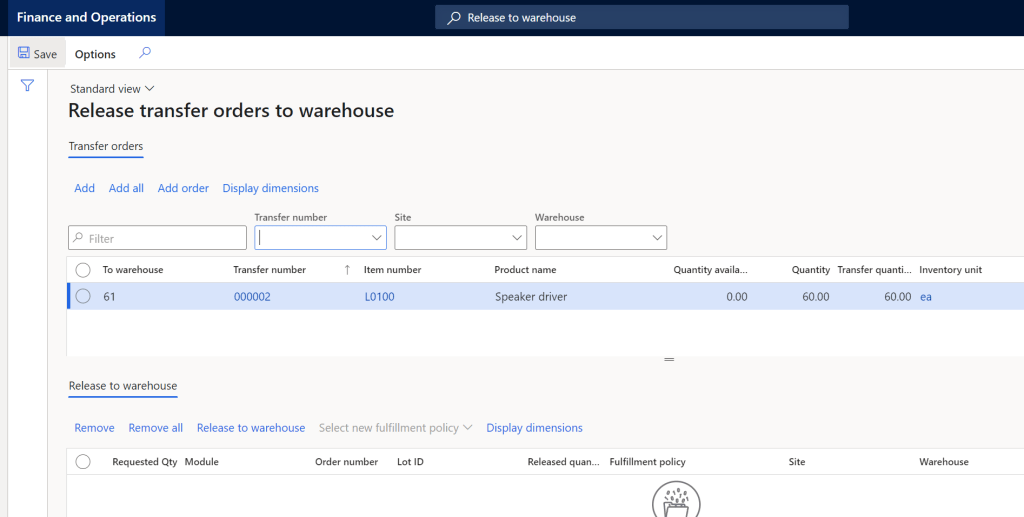
REF: https://docs.microsoft.com/en-us/dynamics365/supply-chain/warehousing/release-to-warehouse-process
Form Grid Control Enhancement
The enhanced form grid control brings improved line entry which allows to enter data in the first row then move on to enter data in the next one while its working in the background to run logic and execute validations at the same time for the previous row. If there is an issue with the previous row you will get a popup message to fix data in the previous row (Processing has stopped because of a validation issue. Go to row with issue”, when you click on Go to row with issue link it will take you to the row with error.
This is a game changer in Dynamics 365 regarding data entry speed, the user will focus on entering data and move to next row while the application in the background processing the entry and saving to database.

Standard View and personalization
Some users personalize forms layouts. For example, you can add/hide a field control, or re-order controls on the form…etc.
When you open any form in 10.0.22 first thing to notice next to the form title is the “Standard/My view” option. What this does is allows the user to switch between personalized and standard for layout.

In this example I have added “Activate change management” field to the purchase orders grid, then saved the view:
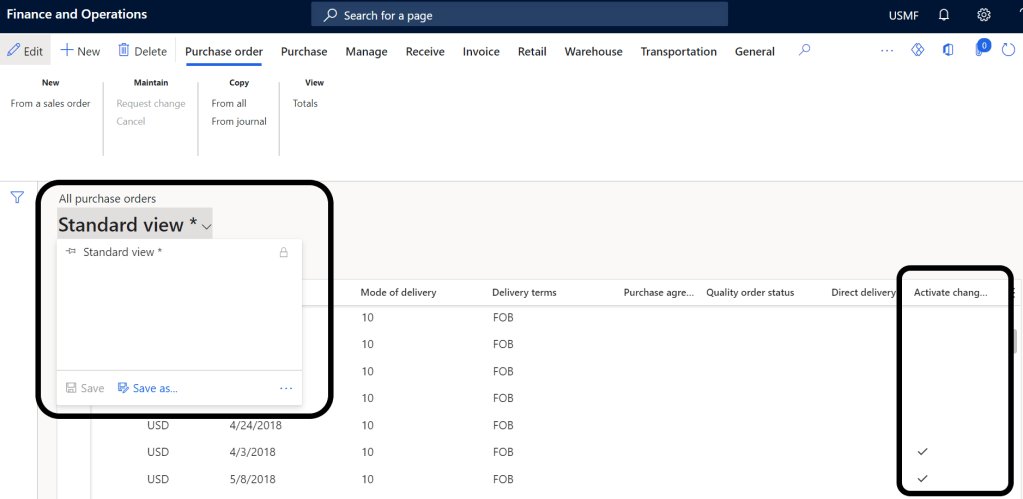
After personalizing the form layout you can save the new view and also have the option to make it the default view every time you access the form:

After saving the view, you have option to switch between standard and custom form layout:

Freeze column – Grid
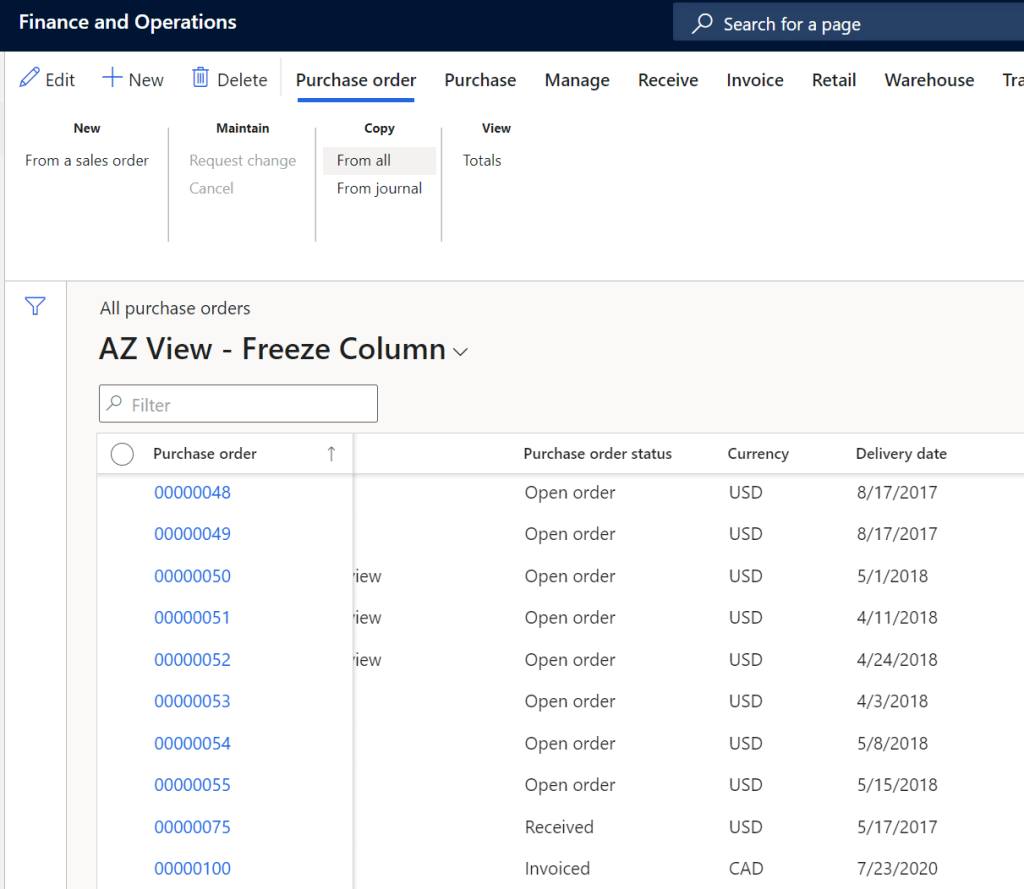
Another exciting feature is the “Freeze column” which allows the user (Just like Excel) to select a column to be always visible when then scroll to the side:

Group by Column – Grid
This feature allows you to select a column to display rows grouped by the selected column, in the example below I selected to group purchase orders by Vendor account:

Once you freeze by vendor account the grid instantly groups rows by the selected columns:


 AZ on D365
Good information about switching between standard and custom views.
LikeLike