
Note: when I use term password in this blog I mean: password, Azure Application Secret, Application Id ..etc. etc.
Passwords and secrets are sensitive data and must be handled with care. There are many reasons for Dynamics 365 F&O application require use of passwords or secrets, i.e. generate file on demand and automatically place it under Azure blob storage or secure FTP, or access external API services in real time ..etc. etc..
Key Vault
In this blog we are not talking about recurring integrations scenario, for recurring integrations we would use other Azure integrations tools such as LogicApps or MS Flow to orchestrate integrations.
Microsoft has built in functionality in Dynamics F&O allows to access passwords stored in Azure Key Vault using x++. Azure Key Vault enabled storage of password, secrets, keys, certificates etc. etc.. Think of it as secure Azure cloud password manager.
Here is a list of benefits of using Key Value to store password:
- Password Security: passwords are secured and protected when stored in Azure Key Vault.
- Password Control: passwords can be updated in Azure Key Vault. This means applications using the key vault will get the updated password.
- Key Vault is almost free ($0.03/10,000 transactions)!
Create Azure Key Vault
Login Azure Portal https://portal.azure.com/ and search for Key vault. Make sure to click on the Key Vault Icon

Click on Create key vault button:

Fill the required fields:
- Subscription: Select valid subscription account such as VSE subscription.
- Resource group: Select proper resource group or just enter a new name to create new resource group.
- Key vault name: it must be unique key vault name.
- Region: Choose region.
- Pricing Tier: for this demo I will use standard.. For implementation it is preferred to use Premium for additional features.
I left other options to defaults.
Click on Review + Create button.

Click Create button.

Give it a few moments to create the resource.
Click Go to resource button.

Assign Azure Client Application to access Key Vault
To access Azure key vault you need to create App registration under Azure Active Directory.
I will not demonstrate how to create app registration in Azure, if you need guidance follow this link:
https://docs.microsoft.com/en-us/azure/active-directory/develop/quickstart-register-app
Under the key vault menu, select Access policies.
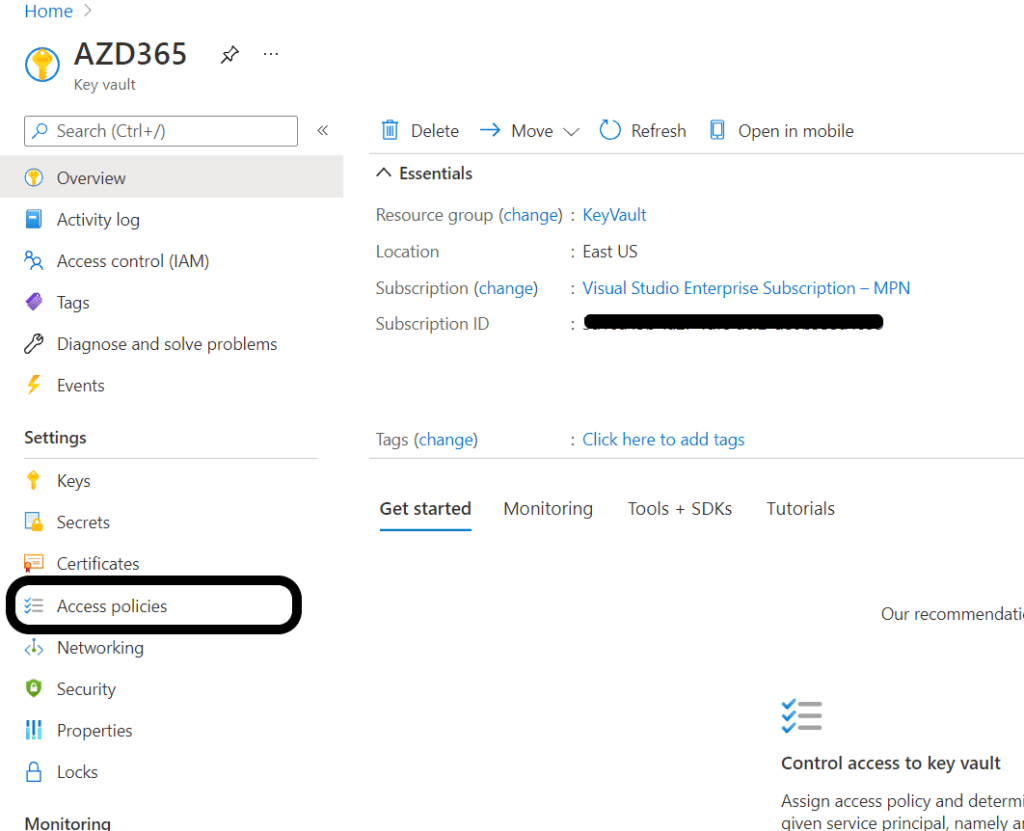
Click on + Add Access Policy button:

Next to Select principal, click on None selected:

In the search box, type the name of the app registration or enter the app Id. From the search results select the App registration, then click Select button:
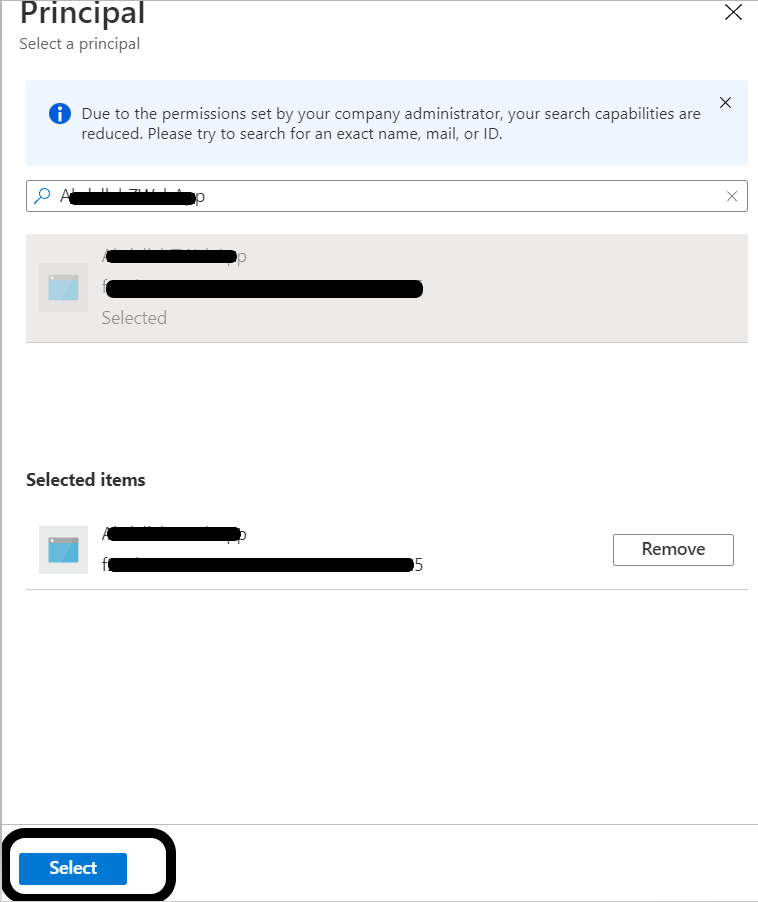
Click Add button:

From Secret permission drop down, select Get and List, then click Add button:

Add Password/Secret to Key vault
Under Key Vault menu, select Secrets, then click on +Generate/Import button:
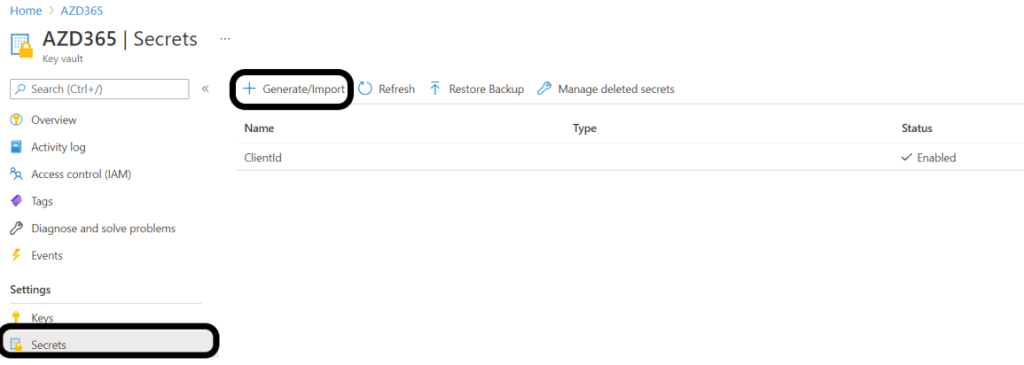
Enter the following:
Name: This name will be used to fetch the secret from D365 F&O
Value: the value of the App secret
Click Create button:
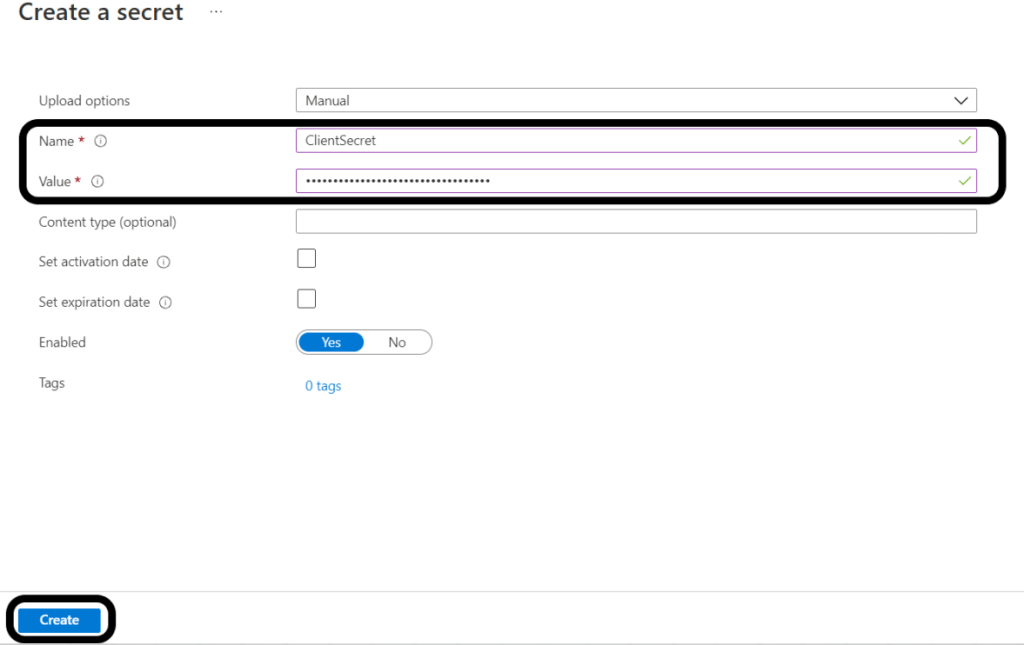
Repeat the same for the App Id.
We are done with Azure portal, lets move to D365 F&O.
Set up MS Dynamics F&O
In D365 F&O navigate to
System administration > Setup > Key Vault parameters:
Click on New button and enter the following:
Name, Description: up to you what you want to call the key vault in D365 F&O
Key Vault URL: this must be copied from the Azure portal
Key Vault client: this is the App registeration that has access to the Key Vault.
Key Vault secret key: the secret of the App registeration used to access the Key Vault.
Under Secrets, click + Add button to add the secrets/passwords stored in the Key Vault:
- Name: Must be unique
- Secret: you must use the following format: vault://<KeyVaultName>/<SecretName>
- <KeyVaultName>: This is optional and can be ignored.
- Secret type: Manual
Click validate to ensure your entries are valid.

To use the Key Vault secrets by code use the following snippet:
private static str getKeyVaultSecretValue(str _keyvaultSecretName)
{
    KeyVaultCertificateTable    certificateTable    = KeyVaultCertificateTable::findByName(_keyvaultSecretName);
    str keyvaultValue = KeyVaultCertificateHelper::getManualSecretValue(certificateTable.RecId);
    return keyvaultValue;
}
REF: https://docs.microsoft.com/en-us/dynamics365/finance/localizations/setting-up-azure-key-vault-client
REF: https://azure.microsoft.com/en-us/services/key-vault
if you are looking to work with certificate files, you first need to activate this option in System parameters:
System administration > Setup > System Parameters: under General tab, set Use advanced certificate store to yes:

In Azure portal you need to follow steps listed in this MS link to upload the certificate (pfx) file using PowerShell script. The steps here are a bit vague and I did not get a chance to test uploading certificate then call it from D365 F&O:
Next blog I will talk about how to generate Azure authorization token to access Azure service.
 AZ on D365