Changing Dynamics 365 “Finance and Operations” Product Core Name

Ever wondered how to change Finance and Operations Product Name?

Simply override ApplicationPlatform – CoreProductName label in 2 steps:
– Create ApplicationPlatform_Extension label file
– Extend CoreProductName label

Create label extension

Create new label file: ApplicationPlatform_Extension
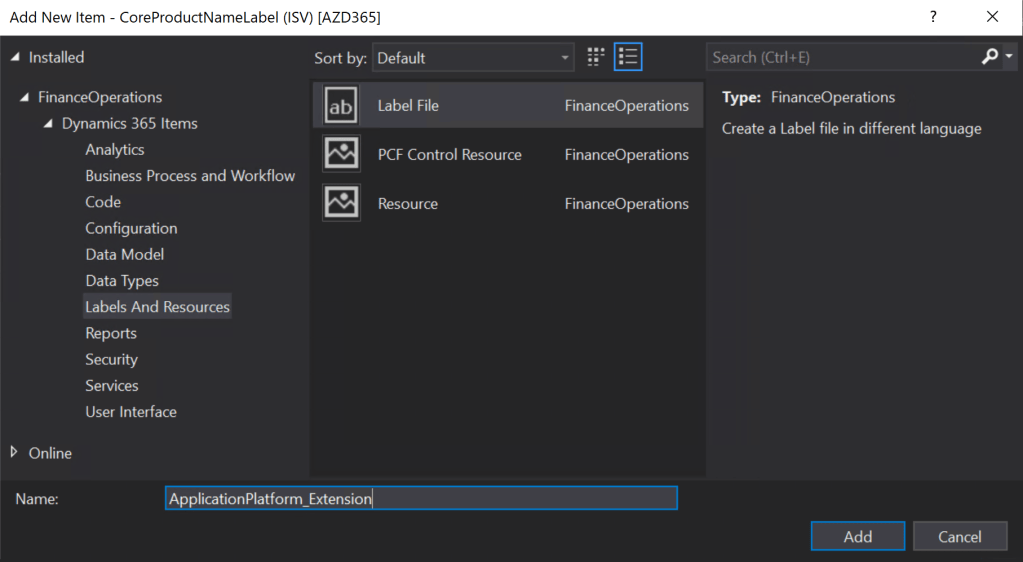
Click Next:

Ensure en-US language is selected then click Next:
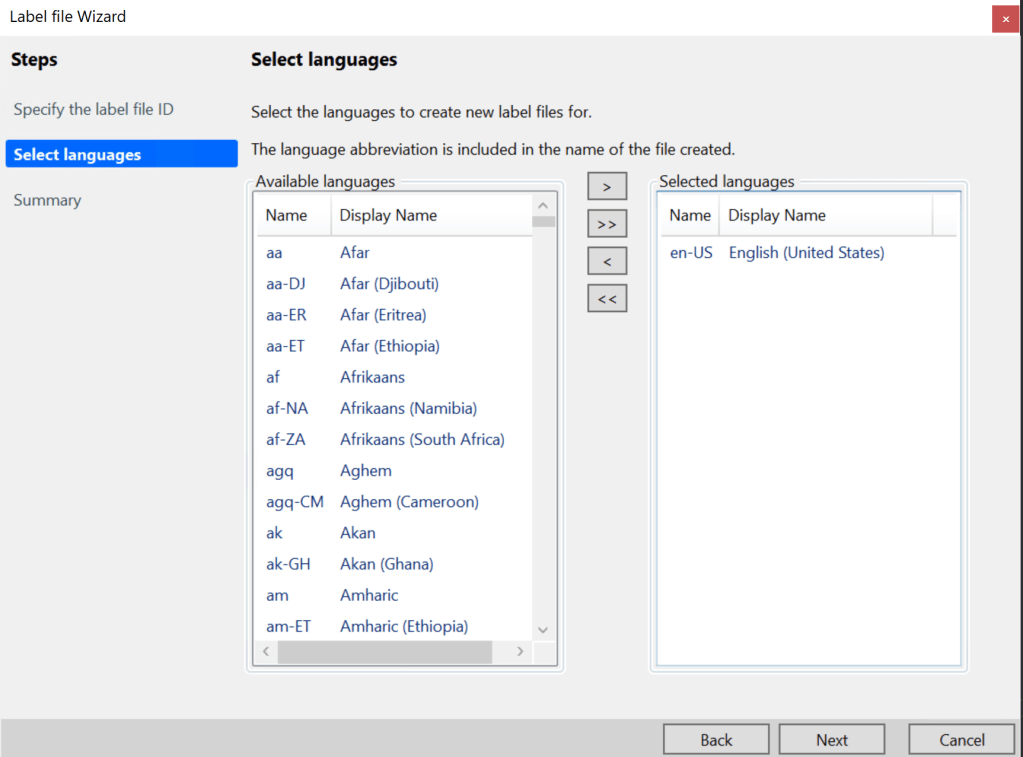
Click Next again. The label file should have been created.

Extend Product Label

Double-Click ApplicationPlatform_Extension.en-US.txt to open the label file:
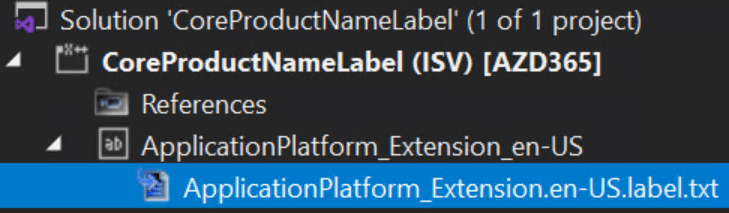
Enter:

Label ID: CoreProductName
Label: <your label>
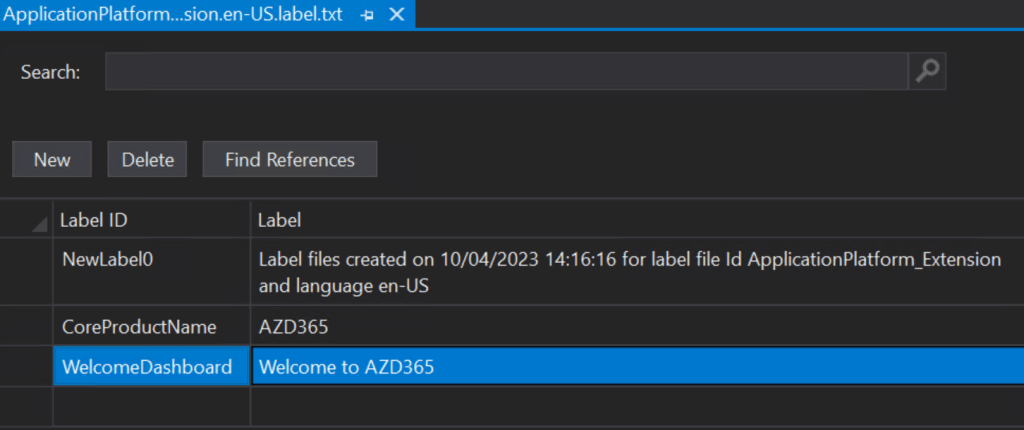
Save and compile your project or model.

Dynamics 365 for Finance / SCM Order Labels in label file by ID

After recent development environment upgrade to 10.0.26 release, I noticed when I compile any D365 project containing label file, the label IDs in the file get re-ordered alphabetically. This is a new out of the box feature added by MS probably to enhance fetching labels.

If you want to turn this feature off/on in Visual Studio, Open Options menu by navigating to Dynamics 365 > Options…

D365 Options Menu

Click on Projects tab under Dynamics 365 menu. You will see a new option added:

Order labels in label file by their ID

Projects Options

By default, this option is enabled.