
D365 SCM’ Vendor Collaboration portal enables external vendors to access related purchase orders, invoices, consignment inventory, and requests for quotation information.
If you are new to Vendor Collaboration portal, I advise you to start here. This topic discusses how to enable Gmail accounts to access Vendor Collaboration Portal.
Set up and maintain vendor collaboration.
Not all vendors use Microsoft 365 accounts and therefore use their personal email accounts to sign up for and access Vendor Collaboration portal. As you might know this is not supported officially. If you followed steps listed here using Gmail accounts, you will receive this error.

To enable Gmail (or other non-Microsoft accounts) accounts to access Vendor Collaboration portal, you need to sign up to create Microsoft account for these personal accounts. Below I will show you how can achieve that in simple steps:
For Gmail accounts you DO NOT need to invite them to Azure Portal as guest accounts when you create Microsoft account for them.
Skip adding Gmail accounts to Azure Portal
First, in your browser navigate to: https://accounts.microsoft.com
Click on Create account > button.

Enter your personal accounts, then click Next button.

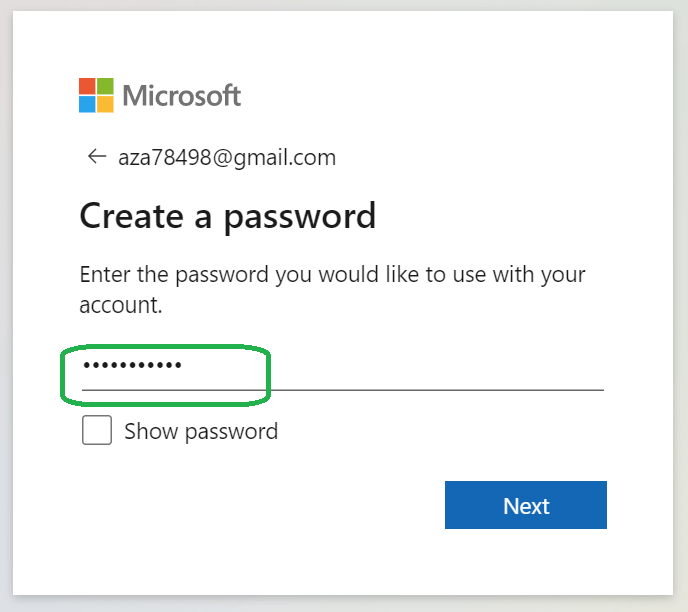
Create password that you can use to access your Microsoft account later (this is different that your personal account password), then click Next button.
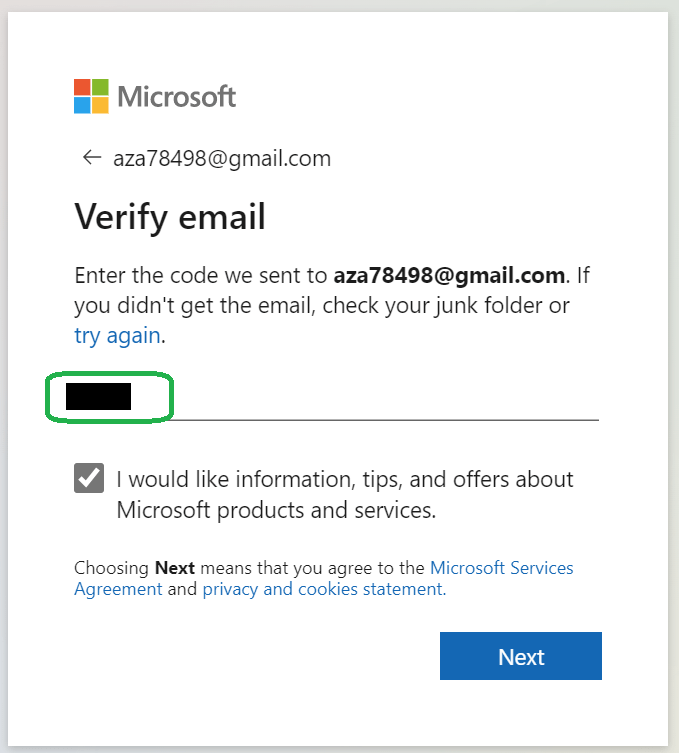
After this point Microsoft account service should send you verification email including security code you will need to use to verify your personal account.

use security code to continue signup process. Click Next button.
You will be asked to resolve a puzzle to ensure you are not a robot. Complete it then click Next button.
Enter your Birth date and country, then click Next button.

Verify your birthdate, then click Next button.

you are all set!

 AZ on D365