
In this blog I will share with you my first impressions of latest Dynamics 365 for Finance / SCM development environment (version 10.0.28) that I have provisioned recently.
Visual Studio Professional 2019
First and foremost Visual Studio Professional 2019 is the new default development environments (Previously was VS Professional 2017 and before that VS Professional 2015).
I never provisioned D365 10.0.27 Dev environment but I think it is the first version that started using VS 2019.
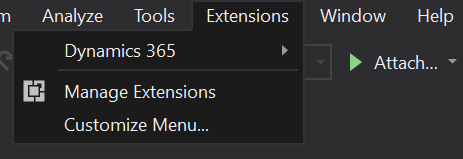
The Dynamics 365 menu that is used by x++ developers has been moved under Extensions menu:
Update Model Parameters
If you tried updating model parameters (Extensions > Dynamics 365 > Model Management > Update model parameters…) You will notice a new tab (step) called select friend packages.
I looked up Microsoft docs to check related documentation but found nothing about it. So I did some testing myself, the purpose of this step is to allow models referencing a specific model to access its internal artifacts. For example, if you have model X referencing model Y, then model X will appear under select friend packages tab for model Y, when you updat model Y parameters and select model X as a freind package, then model X will be able to access internal methods/classes of Y.
I created 2 models AZ Demo and AZ Demo 2, AZ Demo 2 references AZ Demo. AZ Demo added AZ Demo 2 as friend package. When I open AZ Demo descriptor files I see AZ Demo 2 added under <InternalsVisibleTo> tag.
<?xml version="1.0" encoding="utf-8"?>
<AxModelInfo xmlns:i="http://www.w3.org/2001/XMLSchema-instance">
	<AppliedUpdates xmlns:d2p1="http://schemas.microsoft.com/2003/10/Serialization/Arrays" />
	<Customization>Allow</Customization>
	<Description></Description>
	<DisplayName>AZ Demo</DisplayName>
	<Id>896000244</Id>
	<InternalsVisibleTo xmlns:d2p1="http://schemas.microsoft.com/2003/10/Serialization/Arrays">
		<d2p1:string>AZDemo2</d2p1:string>
	</InternalsVisibleTo>
	<Layer>12</Layer>
	<Locked>false</Locked>
	<ModelModule>AZDemo</ModelModule>
	<ModelReferences xmlns:d2p1="http://schemas.microsoft.com/2003/10/Serialization/Arrays"
		i:nil="true" />
	<ModuleReferences xmlns:d2p1="http://schemas.microsoft.com/2003/10/Serialization/Arrays">
		<d2p1:string>ApplicationFoundation</d2p1:string>
		<d2p1:string>ApplicationPlatform</d2p1:string>
		<d2p1:string>ApplicationSuite</d2p1:string>
		<d2p1:string>FleetManagement</d2p1:string>
	</ModuleReferences>
	<Name>AZDemo</Name>
	<Publisher>AZ</Publisher>
	<SolutionId>00000000-0000-0000-0000-000000000000</SolutionId>
	<VersionBuild>0</VersionBuild>
	<VersionMajor>1</VersionMajor>
	<VersionMinor>0</VersionMinor>
	<VersionRevision>0</VersionRevision>
</AxModelInfo>
Create new project
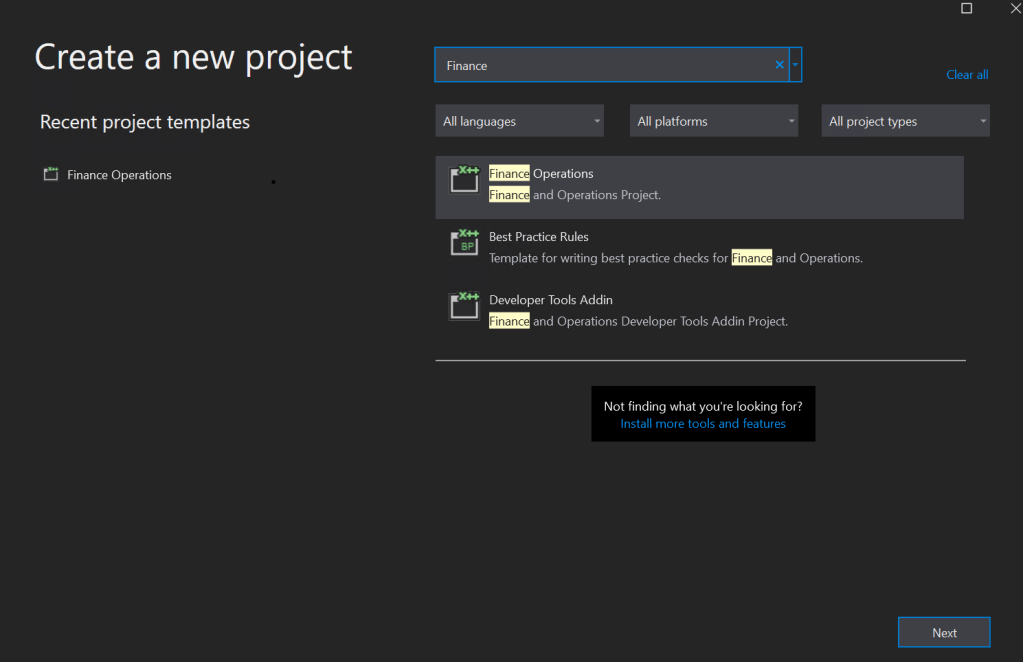
in Visual 2019 the create new project dialog has changed, ensure to enter Finance keyword to find the right project template.
Once selected, it will appear under Recent project templates on the left side for the next time you are creating new project:
Visual Studio 2019 Debugging Options for D365 Dev Environment
In VS 2019, to debug D365 code you will need to have the correct settings which can be found under: Extensions > Dynamics 365 > Options > Dynamics 365 > Debugging. Under this tab you have the option to select which packages/models you want to include in your debugging, this is newly introduced by Microsoft to speed up debugging process and avoid VS crashes.
Debug items in the solution and items in specific packages. limiting the number of items being debugged provides a better debugging experience > Include Packages:
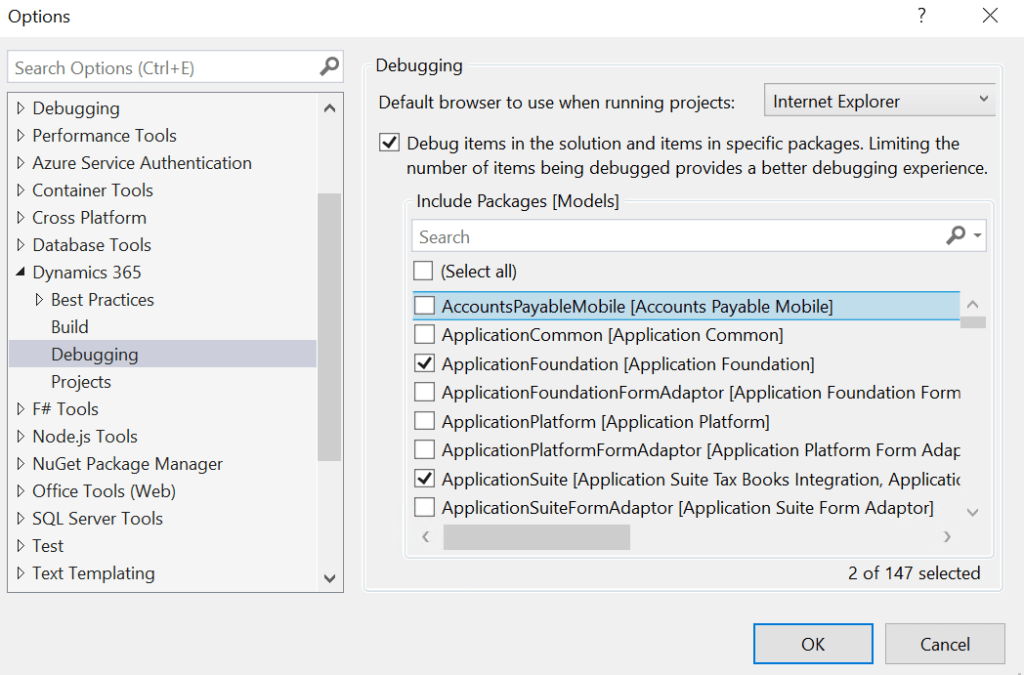
As you might know in previous Visual Studio versions you had 1 option to select: “Load symbols only for items in the solution”. if the option is selected, then you can only debug current solution items’ code, if not selected then you can add breakpoint to any artifact under any package/Model.
 AZ on D365